Troubleshooting Enhanced Alarm Configuration
The following information offers possible solutions to detecting misconfigurations associated with a point’s configuration. Additionally, techniques for fixing detected EAC-specific errors are described.
Ideal Process for Troubleshooting Point Configuration Errors
The ideal process for troubleshooting EAC point configuration errors should be as follows:
- Setup a SVCMON point for each PNT service to record the count of configuration errors that exist for all points in that service.
- Set an alarm on the SVCMON point and/or notify a CygNet Administrator when this value is greater than zero.
- The value reported will be the sum of the errors from the five categories of possible Config Errors, which are General Point Config + Key Field Entry + Calc Parameter + GNS ID Entry + EAC.
- When notified of one or more point configuration errors, identify which points contain the errors in the following way:
- For EAC configuration errors
- Open CygNet Explorer.
- Select the PNT of interest.
- Right-click and choose Select Search.
- Choose the entry whose name starts with Errors: EnhAlarmCfg….
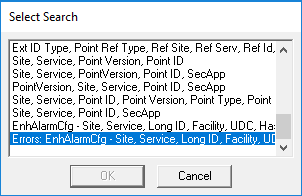
CygNet Explorer Select Search
- All entries in this list represent points with at least one EAC error.
- Open the PNT editor for each of the points in the list, click
 Enhanced alarm settings… and repair any misconfigurations indicated in the Enhanced Alarm Settings dialog box.
- For all other configuration error categories
- Run the Point Configuration Manager utility (Utilites\PointCfgMgr.exe).
- Choose to show all points from the PNT of interest.
- Select Columns… and add the following Config Error columns to display. Click OK.
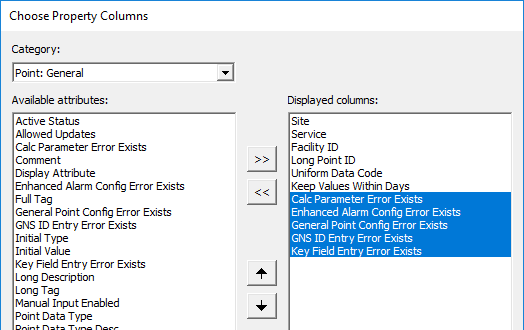
Config Error columns
- Calc Parameter Error Exists
- Enhanced Alarm Config Error Exists
- General Point Config Error Exists
- GNS ID Entry Error Exists
- Key Field Entry Error Exists
- In the main view of the Point Config Manager sort by each of the error columns to identify which of the points contain which configuration error category.
- Select Edit… to fix any specific configuration errors in the Properties for Point dialog box.
- For EAC configuration errors
Detecting Errors in EAC Configurations
If you are just interested in detecting and/or displaying EAC-specific configuration errors for diagnostic purposes, the following are scripting techniques that can be used to populate an administrative display. For some background, here are the EAC-related fields in the PNT database that can be utilized in any CygNet UI control that supports point attribute assignments.
PNT Header
The PNT header has two EAC-related fields:
- HasEnhAlmCfg — a Y/N field that indicates if an EAC definition exists for the point
- EnhAlmConfigError — a Y/N field that indicates whether the definition has errors in it
PNT Database Index
There are two new EAC-related indexes on the PNT database:
|
EAC-related PNT Indexes |
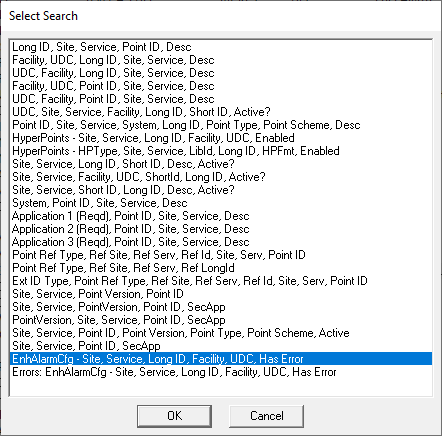
- EnhAlarmCfg (PNT_E1_INDEX) — an index that lists all points with EAC defined
- Errors: EnhAlarmCfg (PNT_E2_INDEX) — an index that lists all points with EAC defined that also have EAC errors detected
The PNT_E2_INDEX index should always have zero entries. If you view that index (using Select Search) in CygNet Explorer and see that there are points listed, the associated errors should be fixed.
You can also retrieve the number of points with EAC errors using CygNet's COM automation and .NET APIs.
The following VBScript code example uses CxScript.GlobalFunctions.GetGenserveInfo to retrieve the number of points within a PNT service with EAC errors by virtue of them existing in the PNT_E2_INDEX:
Function GetEacErrorCountFromPnt(strPntSiteService)
GetEacErrorCountFromPnt = 0
Dim globalfuncs
Set globalfuncs = CreateObject("cxscript.globalfunctions")
On Error Goto 0
Dim pvGenserveInfo
Call globalfuncs.GetGenserveInfo(strPntSiteService, "TABLEROWCNT:PNT_E2_INDEX", pvGenserveInfo)
If err.number <> 0 Then
'MsgBox "Failed to connect to PNT service '" & err.description & "'"
Exit Function
End If
On Error Resume Next
If (ubound(pvGenserveInfo) = 0) Then
GetEacErrorCountFromPnt = CInt(txtEacErrorCnt.Text = pvGenserveInfo(0,1))
End If
End FunctionSVCMON Info Items
As mentioned previously, you should add points to your SVCMON service that monitor the total number of configuration errors present for each PNT service in your system. The value reported for the VALIDATION_ERRORS info item will be the sum of the errors from the five categories of possible config errors: General Point Config + Key Field Entry + Calc Parameter + GNS ID Entry + EAC (see Ideal Troubleshooting Process for Point Configuration Errors above for more details).
You will have to use the VALIDATION_ERRORS info item for these SVCMON points because the longer EAC-specific info item, TABLEROWCNT:PNT_E2_INDEX, does not fit in the General 2 data field on the Application page of the point configuration record. However, the VBScript sample provided above can easily be added as an HSS’s Hyperpoint Script to record and notify on this info item as well.
Fixing Errors in EAC Configurations
The Enhanced Alarm Settings dialog box does quite a robust job detecting and reporting misconfigurations in the EAC expressions stored for a point. Opening the editor and repairing the indicated errors will always be the preferred remediation technique. However, the details of EAC settings validation failures are also accessible in two other ways:
PNT Log File
When the PNT receives a new EAC xml configuration to store, it validates the configuration against an xml schema definition. Any points that are referenced in the EAC expressions are verified to exist as well. The PNT log file will show details of any detected validation errors.
Error Detection via Script
If you are updating a points EAC XML via the CygNet COM or .NET APIs, the xml that you pass in is validated prior to sending it to the PNT. If this validation step fails, the EAC XML save attempt will fail.
COM API
The details of the validation failure can be retrieved by calling the following CxPnt.PntClient.ValidateEnhancedAlarmConfigXml function:
Function ValidateEnhancedAlarmConfigXml(ByVal PointTag As String, ByVal ConfigXml As String, ByRef pvErrorList, ByRef pvWarningList) As Boolean .NET API
A similar call can be made to the following CygNet .NET API:
CygNet.API.Points.ValidateEnhAlmCfg(PointTag tagIn, string Xml, out IEnumerable<string> errors, out IEnumerable<string> warnings) 

